Sunday, June 05, 2011

AM Tutoring Tips and Tricks part 7 - Body Language

Having strong, clear poses could help our animation getting more appealing. However, we need to not only design great graphically poses, but also tell the story and show the emotion.

Unless it's an extrem close up shot, character's body occur the biggest space in the scene. Even most of time we look at eyes first, we feel body language as well. So usually I'll work on the body first, make sure the pose itself (without facial expression) is good enough to tell the story, then move on to facial animation. Eventually, body and face need to work together, for me it's easier to get the idea how to pose face if I already had body communicates well.

I found a book which is very helpful for study body language, it wrote by an ex-FBI Joe Navarro. He wrote this book basic on his own experience, and analyse body language in very scientific way. It doesn't really relate to animation, but it's fascinating to know what's behind the poses. This is a fun book to read, and plus, after read this, you might be able to tell if people really mean it when saying "good job". :)
There is an example from the book, the book mention that when we feel upset, or try to escape, we'll try to block ourself from outside. This could be as subtle as by covering the neck or buttoning up jacket. Here we go...
Thanks to Tony Chau for sending me a great mail about topics.

Sunday, May 29, 2011

AM Tutoring Tips and Tricks part 6 - Animate from inside out, thought process.

Last week we told about how to mechanically make your animated character alive, so let's talk about something inside of character's mind, how to analyse and use it to create believable characters.

For me, watching a lot of movies is the best way to learn acting, and it's probably much cheaper than taking acting classes. I watch many movies (but the weird thing is my list never get shorter), but not just watch. I pay attention to their acting, what's the story, what's inside of their minds, what's the relationship...etc. I found this become one of the standerd for me to rate movies, and plus, it makes good movies even more interesting by details which I didn't notice before.

I took a clip from movie named "Fair Game", (Sean Penn, Naomi Watt) to explain how I analyse a scene, and how it's going to help me animating. Before you watch this clip, I'd like to give you a heads up (not-that-much spoil alarm). Sean Penn is an Ambassador to Niger and Naomi Watt is his wife. At this friends gathering, there is one guy starts a racist topic about people from mid-east...


Here is what I read from the scene:

-F120, Sean Penn: "what are you talking about?", then he rise his head and say "no...not the racist BS...".

-F340 he is try to cover his upset and not to embarrass his friend.

-His wife here, apparently who knows Sean Penn the most, knowing something is coming, and wish this guy can just stop talking.

-F660, Sean Penn look at this guy and think about: "Are you sure you want to keep talking? Because I'm not going to stand this!" (Angry)

-F740, Naomi Watt: "no...it's coming." (Embarrassing)

-Then the last shot Sean Penn sits up and strikes back, the scene ends here.

Analyse what's inside of character's mind could help me chose what's the best acting choice for my shot. I usually prefer to simplify it to a word or a simple sentence, then everything else need to support this idea. If I have character is growing his anger inside like Sean Penn here, a little root happy bouncing might not be the best fit.

In this clip, We don't even need to see the end and exactly know what's going to happen next. Sean Penn doesn't need to say a word but express them crystal clear. This is the same goal that animation should achieve. We have no luxury to let audience guess what's going on, otherwise we'll pull the audience out of screen and lose believability immediately.

P.S. As a movie lover, there is nothing better then having a good time and call it research! :)


Friday, May 20, 2011

AM Tutoring Tips and Tricks part 5 - Animate from inside out, physically.

For a human character, in most of cases, animating from root, through body to the finger tips makes character alive. Even though we probably heard of "Animate from inside out" thousand times, I ask myself all the time, "what the heck is that means?" and how to apply it to my animation?

Let's take a simple example to explain, rise a resting arm up and pointing forward. I bet you can do this in real live without even think about it, but as an animator, we need to analyse how exactly this action happened. The order was sent from our brain, go through bunch of muscles and bones, then the action happens (forgive me can't be accurate about the exact process, otherwise I'll be a doctor instead of animator.)

The word "believable" is actually from the library we build in our mind, by watching this kind of action over and over again. If we see a human moves his/her wrist without any tiny movement from forearm, upper arm or shoulder, he/she gotta be either an outstanding break dancer or a terminator. We will catch it instantly because it against the library of our brain. So if we didn't animate our character from inside out, it will take away the believability from audiences instantly as well.

How to apply it to animation? I did a little demo to show my understanding here:


So the left one is what computer gives me after I set 2 poses, which looks ok, but it's lifeless and doesn't feel organic at all. What I did for the right one, which is more polished version, I made the shoulder move first, and then bring the upper arm, fore arm and the hand follows. You might notice this is the classic principle of overlapping action and follow through, and you're right indeed. This is more about knowing why exactly we need to apply animation principles. If we only apply it without knowing why, for this clip for example, it's very easy to fall in the "noodle-y arm" trap.

In sum, Instead of making a rule like "everything needs to move from root!" I prefer to analyse where is the force come from before I start a shot. If my character is sitting and rising his head, then the force will go internally from root, chest to the head. On the other hand, if he got a ball hit on his head very hard(external force), then his head will go forward without any anticipation from root. Figuring out where is the force come from will help you to create believable animation.

Sunday, May 08, 2011

AM Tutoring Tips and Tricks part 4 - Animation Layer


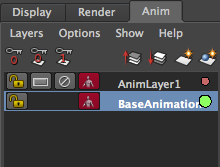
If you're using maya 2010 or above, I found a tool is extremely helpful for animation called "Animation layer". you can find it on the right bottom corner in maya.
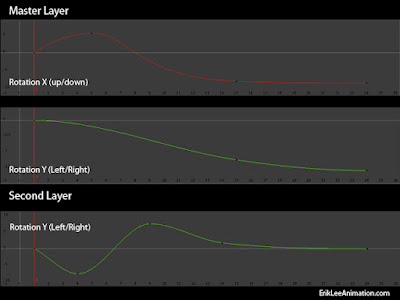
It helps me to keep my curves clean and easy to manage when I design to add texture on my animation. I quickly did an animation (and a picture) for a demo to show how I use it and how it helps me.


A simple head rise animation, on the left side is animation without texture, basically I got the timing and everything works in this layer. As you can see in the picture, the Rotation X (RX) is controlling the head rising, and RY here is simple, just slightly going down, which means the head has turn just a little.

It moves smoothly, but boring. The idea here is adding some textures to make it more interesting without messing up the original curves. So I select the head controller, create the animation layer, set keys on RY (start with 0 as default) for the head shake.

As it shows on the left in the video, now I'm not only have a head rise, but it also has a nice head shake as texture. Plus, thank to the animation layer, my curves are clean (in both layers). If I need to tone down the head shake later, all I need to do is going to second layer and scale the curve down.

In Sum, creating too many layers might lead you into chaos. However, it is a powerful tool to add things on top without mess up the original animation. I personally like to use it for the extra touch of final polishing, such as shaking or jiggling, and it only applied after the base animation get approved.

Hope this helps,

cheers.

Sunday, May 01, 2011

AM Tutoring Tips and Tricks part 3 - Reuse polished curves.

How to animate fast? wisely reuse the curves already been done could help a lot.

Unless you have bunch of awesome genius riggers got your back, otherwise it needs a lof of work to make the CG model move organically. Facial animation for an example, working individually on cheeks, nose, lower eye lids could take you hours and hours. so why not to use the curves already finished, and apply them to the other connected parts?

I'll take last shot I did for an example.

After I finaled the lip-sync, most of all, up and down on the jaw. It connects to the cheeks, nose, and lower eye lids. So I copy the up/down curve, paste it to the cheeks, nose and lower eye lids. So they can move together and feel connected. Some adjustment needed because they might not share the same volume, but basically I'll just scale the curves to the proper range.

For the exaggeration, and break the feeling that head is a gigantic solid sphere. I also copy the jaw curves to the head scale. So when he opens mouth, the head stretch a tiny bit; when he close mouth, head squashed as well. Unless the project is super cartoony, I personally like to keep this in very subtle way, so you'll feel it, but not necessary see it.

Download QuickTime file HERE

I hope this helps, please let me know if you have any question. If you have better way to do it, please kindly share with me.

cheers.

Wednesday, April 20, 2011

AM Tutoring Tips and Tricks part 2 - How to use TweenMachine to quickly create breakdown poses.

"How to animate faster?"
This is the question I've been asked constantly. So I think this might be a good topic to talk about for 2nd week.

Before we start it, I should make myself clear, there is NO magic trick can double up speed, or "appeal" button to magically turn animation to master piece (If there is one day human ever invent this function, then we all gonna lose job for sure.). Everything comes from practice, sounds cliche? but it's true. Getting more experience is the only one way, which might include the detail observation from real life, knowledge of software or most of time, we learn from our mistake. So, don't be afraid to experiment new workflow, or try a new way to approach a shot. The more different attempt we had, the more experience we got. As a student, I think the priority is to learn how to make it right but fast. We can only produce quality animation with speed when we already knew how.

Back to the topic, even though there is no shortcut to double our speed, there are tools can help . I'm going to introduce the tool I use the most while animating, "TweenMachine". (you can find it at CreativeCrash.com, registration needed)

How to use: select controllers, move timeline between 2 keys, and move the bar (can't be easier.) -100% means the new key will be exactly like pose A, and 100% will be pose B. You can turn on the "overshoot" under options menu, which allows you pull the bar to 150% or -150%.

Here is a jumping demo I made to show how it works.

Screen Left, no breakdown, key poses only.
Screen right, this took me around 10 minutes to add breakdown poses by only use TweenMachine (further Adjustment needed), the red dot on the right bottom corner means breakdown poses.


You can download this video from HERE.

So I use TweenMachine to quickly create breakdown poses, and also decide the pose favoring. For example, I want the head lead the jumping, so the head will be favoring key pose on F15, and hands are delayed to create follow throw. Same steps applied with landing, the body come first, and then head and hands follow.

In sum, even though by using this tool, you can quickly get the favoring breakdown, adjustment still needed for the final pose. It can quickly gives you a starting pose, and avoiding the wicked curves cause by gimbal lock.

P.S. you can do the same thing without using TweenMachine by borrowing keys on timeline, by that means, move your mouse one the place you'd like to borrow between 2 poses, middle mouse drag to middle and set key.

Hope this helps, if you know something works better, please kindly share with me. :)

Cheers!

Tuesday, April 12, 2011

AM Tutoring Tips and Tricks part 1 - Maya Hot Keys Set Up For Animator.


Hey Animators,

I'm glad that AM selected me to host an 1 hour alumni QA on 8pm pacific every monday! It's so excited to me that I can share a little bit my experience with fella animators. I wish these tips and tricks can help you some how.

These tips and tricks will be my personal preferences, and not necessary works for you. If you know(or hear) something better and make our work easier, please ignore whatever I wrote here and kindly share them with me. :)

Ok, let's start with something easy, my Maya hot keys set up for animator.

The idea here is to reduce the time from press bottons in maya, or to avoid clicking the mouse.

A note before set up, I always use "Weighted Tangents" in graphic editor.

Here are my hot keys set up.

+ -add inbetween
- -remove inbetween
' -break tangent
; -free tangent weight
ctrl+' -Unify tangent
ctrl+; -lock tangent weight

You can modify your hot keys by go to window>setting/preferences>hotkey editor
These keys are all locate under "graphic editor".

So how they work?

+/- (add/remove inbetween) is very useful especially in blocking stage. After I throw bunch of poses in my scene, it can help me quickly put the poses on the right timing by just press +/-

How to use: Select all the controllers and put the timeline between keys, press +/- could move everything forward or backward. (you can find it on the right click menu on timeline as well.)

'/; are the hot keys I use while refining my curves in second pass or polishing. It makes free/break tangents easier by just press one button on keyboard, and lock them back quickly after I got the nice curves I want. You can do it by click little icon on the top of graphic editor, but for me, personally I feel it's much faster by press '/;.


In sum, these hot keys set up are not gonna magically save you hours, but they do save a little from here and there.

P.S. +/- default function could still work on the number pad (Scale up/down manipulator) after changed; '/; are not assigned for anything in default.

Hope this helps, happy animating!

Cheers.


Sunday, June 20, 2010

AnimationRigs 2010 Contest


This is for AnimationRigs 2010 Contest.
I have a lot of fun animating this action scene. especially for the posy animation, timing and the shots editing.
Even though the contest is due, I'm going to keep polish this scene. so, it's WIP for now. :)

any thought to make it better?

Tuesday, May 25, 2010

2010 Demo Reel


(Click on Picture to go my website: ErikLeeAnimation.com)

2010 new reel with 2 new shots.
"Fish" - 2 person dialogue test,
"Monster" - Alien style animation test.

Tuesday, August 25, 2009

New Demo Reel


Finally,during the time I'm producing 85 seconds of animation per month, I still try to animate something for my reel. (include reel clip, it will be over 100 sec per month.....)
I was trying to do some different style of animation. Even though my time is very limited, I still have a lot of fun while animating.

Thursday, April 30, 2009

1st Place Student from Sky Festival!!


Today I got a package and there is TROPHY of sky festival!!
This is AWESOME! I'm really happy, thank you , SkyFest!

Wednesday, April 08, 2009

Normans!!!

This is a picture collect many AMAZING modified norman from my animation pals.

Wednesday, December 17, 2008

2008 Demo Reel

click on Picture to go to my website.


This is latest version of my demo reel 2008.
Included clips from Pixar classes, JD's class, self-practice and my thesis short film.
check it out. :-)

Wednesday, December 03, 2008

My Final Thesis

I passed my final review today. Until now, I still can't believe I really finished it. I feel like I just block out all the scenes yesterday, and still have a lot of polish work to do.
It's unbelievable when I see throw an early concept, animatics, and final rendered film. it's like a dream, I never done a short film before and now I have done one.

I would like to thank a lots people, I can't make it done without you all,

Thanks Tom, I can always hear you're laughing when you watch my work, no matter how many times you saw it. That really keeps me moving forward and feels this film still fun to watch. You also gave me a lots of useful critiques to make this film better.
Thanks Charles, I can't imaging how I gonna finished this film without your help. I'm too lucky to get your mentoring. You always give me the best critiques and suggestions. When I stuck, you can always find the way out for me.
Thanks 榮昌, you're the best musician in the world, your awesome music really bring this film up to the higher level.
Thanks Trevor, figured out most of my rigging problem and allow me to borrow your eye balls and kid's hand(sounds really creepy, isn't it?). always kinddly share the idea and experience, you're the best friend! (and the best animator as well!), btw, are you willing to share one of your kidney just in case one day I might need it?
Thanks Edward(I-Chi Lu) make a great beautiful assistance model for me. Thanks Sean(Hyoung Joong Seo) fix my rig and save my ass. Thanks Mali(Tun-En Chen), added the smoke VFX when you're burned up by your mid-point.
Thanks Jorge E. Ruiz, dude, did you see those hair texturing? they're AMAZING!! I think whoever do those, deserve an animation position in any studio!!(wait a minute, what????:-P)
Thanks all my friends in the lab, I could have done this film one years earlier without monkey around with you guys...kidding!! you guys are the best!! I love the way we keep push each other come to lab everyday, my work will be suckest ever if I never meet you guys. (Keep dancing!!!! you slackers!!!)
Thanks to my lovely parents, always stand for me, the most important thing is you always let me do whatever I want and have trust in me, I can't do anything without you.

The last and biggest special thanks goes to Yu-Ching. You always take good care of me, give me the best and hardest "no-animator" critiques, you make a fantastic fat-tastico book......too many things you do it for me and I have no idea how much I owe you, thank you so so so much!

Feels like I just win the Oscar, hun? I just feel too happy to stop. Please check out my website and give me your thoughts or crtiques, I appreciate every word you guys leave.

Keep going tomorrow?? Keep going!!!

Thursday, November 06, 2008

Weekly Drawing again

This is for this week...

Weekly Drawing


New Blog called "Labdance", which is a drawing blog. We have a weekly topic.
Its so amazing how people bring out different ideas every week, this is what I done for last week.

Friday, September 12, 2008

Last Semester!


Since this Fall is my last semester, I have to finish up my thesis!
After I made a very details schedule, holy! I'm so behind.

I need to work EVERYDAY without any weekend until I pass the final review. So I think I won't be animating anything beside of thesis.

now I fell a little bit better the school cancel the Pixar class, than I can really focus on my thesis...

I'll post new blocking or any progress clip on here, let's see how fast I can animate!!:-P